


How to Set Parental Controls on Android in 2026 — A Parent's Complete Guide
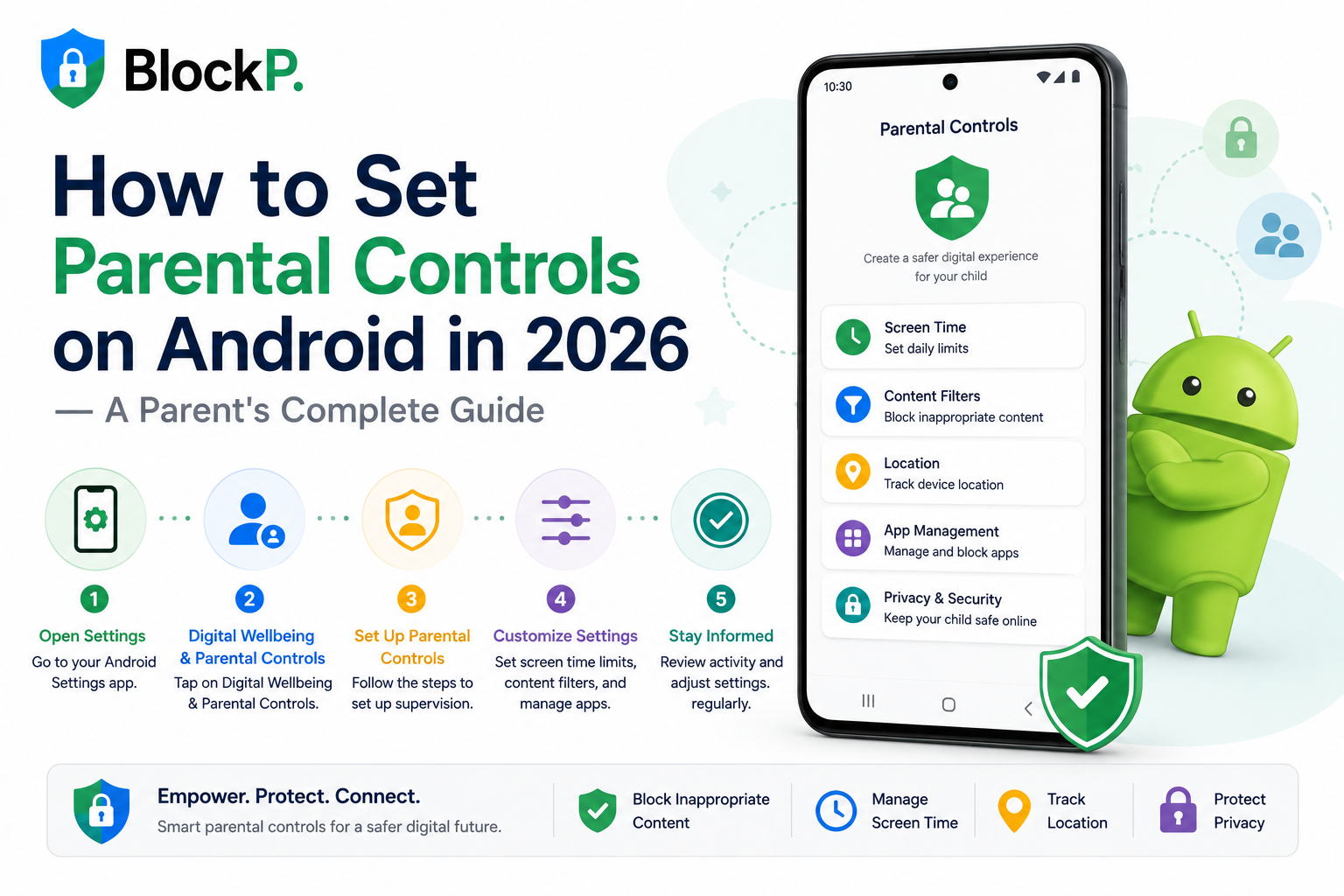
To set parental controls on Android in 2026, use Google's Family Link to manage screen time, app downloads, and content restrictions, then add a dedicated content-filtering app for stronger protection against explicit content. Combining Android's built-in controls with specialized filtering tools provides the most comprehensive setup.
Parents today face a difficult challenge. Children use smartphones for school, communication, entertainment, and learning, but the same devices can also expose them to age-inappropriate content.
Fortunately, Android offers several tools that help parents create safer digital environments without completely removing a child's access to technology.
This guide walks through the entire setup process.
How Do I Set Up Android's Built-In Parental Controls?
Android's primary parental control system is Google Family Link.
Family Link allows parents to supervise a child's device remotely and manage many aspects of their digital experience.
Step 1: Install Google Family Link
Download:
- Google Family Link for Parents
- Google Family Link for Children & Teens
These apps are available through the Google Play Store.
Step 2: Create or Connect a Child Account
Open Family Link and follow the prompts to:
- Create a Google account for your child
- Connect an existing supervised account
Step 3: Link the Devices
Once connected, you'll be able to manage settings from your own phone.
Screenshot Description
A parent's smartphone displaying the Google Family Link dashboard with options for screen time, app approvals, and content restrictions.
How Do I Restrict App Downloads on Android?
One of the first protections parents should enable is app approval.
Step 1: Open Family Link
Select your child's profile.
Step 2: Navigate to Controls
Tap:
Controls → Content Restrictions → Google Play
Step 3: Configure App Approval
Choose whether downloads require:
- Parent approval for all apps
- Parent approval only for paid apps
- No approval
Most parents prefer requiring approval for all downloads.
Screenshot Description
Family Link settings page showing app approval options and age-based content ratings.
This prevents children from downloading inappropriate apps without permission.
How Do I Block Adult Sites on My Child's Android?
This is one of the most common questions parents ask.
Google offers limited built-in protections, but multiple layers work best.
Step 1: Enable SafeSearch
Open Family Link.
Navigate to:
Content Restrictions → Search
Enable:
SafeSearch
This helps reduce explicit search results.
Step 2: Restrict Chrome Browsing
Family Link allows parents to manage website permissions.
You can:
- Allow approved sites only
- Block specific sites
- Limit access to adult content
Screenshot Description
Chrome content settings displaying website restriction options within Family Link.
While useful, these controls may not catch everything.
That is why many families choose dedicated content-filtering tools as an additional layer.
How Do I Add Stronger Content Filtering on Android?
Built-in parental controls focus mainly on account and app management.
Dedicated content blockers focus on the content itself.
For example, BlockP provides AI-powered content filtering designed to help block explicit websites, searches, and online content across Android devices.
Step 1: Download the App
Install the application from the Google Play Store.
Step 2: Complete Setup
Follow the app's setup instructions.
This may include:
- Granting permissions
- Activating filtering
- Configuring protection settings
Step 3: Test Filtering
Verify that inappropriate websites and content are being blocked correctly.
Screenshot Description
Android device displaying active content-filtering settings and protection status.
Many parents prefer combining Family Link with dedicated filtering because each tool addresses different aspects of online safety.
How Do I Limit Screen Time on Android?
Screen-time management remains one of the most valuable parental control features.
Step 1: Open Family Link
Select your child's account.
Step 2: Choose Screen Time
Tap:
Controls → Screen Time
Step 3: Set Daily Limits
You can establish:
- Weekday limits
- Weekend limits
- Bedtime schedules
Step 4: Apply Downtime
Devices can automatically lock during designated periods.
Screenshot Description
Screen Time dashboard showing daily limits, bedtime scheduling, and usage reports.
These tools help children develop healthier technology habits.
How Do I Block Specific Apps?
Sometimes parents want to restrict access to individual apps rather than the entire device.
Step 1: Open Family Link
Select your child's profile.
Step 2: View Installed Apps
Navigate to:
Controls → Apps
Step 3: Disable Access
Toggle permissions for specific applications.
Common examples include:
- Social media apps
- Video-sharing platforms
- Gaming apps
- Messaging services
App-specific restrictions allow for more flexible supervision.
How Do I Monitor My Child's Activity Without Constantly Watching Them?
Modern parental controls focus on supervision rather than surveillance.
Family Link provides:
- App activity reports
- Screen-time summaries
- Device usage trends
Parents can review:
- Most-used apps
- Time spent online
- Device activity patterns
The goal should be understanding habits rather than tracking every action.
Open communication remains important.
Technology works best when combined with trust and conversation.
How Do I Make Parental Controls Harder to Disable?
Older children often become surprisingly skilled at finding workarounds.
Parents can strengthen protection by:
Protecting Parent Accounts
Use strong passwords and two-factor authentication.
Securing Device Access
Prevent children from accessing parent devices.
Using Supervised Accounts
Keep child devices connected to Family Link supervision.
Adding Content Filtering
A dedicated solution such as BlockP can provide an additional layer that works alongside Google's parental controls.
Reviewing Settings Regularly
Periodically verify that controls remain active and properly configured.
No system is completely bypass-proof, but layered protection significantly improves effectiveness.
How Do I Create an Age-Appropriate Android Setup?
Different ages require different approaches.
Ages 5–8
Focus on:
- Approved websites
- Strict app controls
- Strong content filtering
- Limited screen time
Ages 9–12
Introduce:
- More independence
- Guided digital literacy
- Continued supervision
Ages 13–17
Shift toward:
- Conversations
- Shared expectations
- Gradual autonomy
- Transparent monitoring
Parental controls should evolve as children mature.
The goal is not permanent restriction but gradual development of responsible digital habits.
What Is the Best Android Parental Control Strategy?
The strongest approach combines multiple layers.
Layer 1: Family Link
Provides:
- App management
- Screen time
- Device supervision
Layer 2: SafeSearch
Reduces explicit search results.
Layer 3: Browser Restrictions
Limits access to inappropriate websites.
Layer 4: Content Filtering
Adds protection against explicit material.
Layer 5: Ongoing Conversations
Teaches critical thinking and digital responsibility.
Technology alone cannot replace guidance, but it can support it.
Conclusion
Setting parental controls on Android in 2026 involves more than simply turning on one setting. Google's Family Link provides an excellent foundation for managing screen time, app downloads, and content restrictions, while dedicated filtering tools offer additional protection against explicit content.
By combining Android's native controls with content-filtering solutions and ongoing communication, parents can create a safer digital environment that supports both protection and healthy independence.
Frequently Asked Questions
Do Android parental controls work on all apps?
No. Most parental control systems work well with Google Play apps and many popular applications, but effectiveness can vary depending on the app, operating system version, and device settings.
Can my child disable parental controls?
Children may attempt to bypass restrictions, especially as they become more technically skilled. Proper account security, Family Link supervision, strong passwords, and layered protection can significantly reduce the likelihood of successful circumvention.
What's the strongest parental control setup for Android?
The strongest setup typically combines Google Family Link, SafeSearch, app approval requirements, browser restrictions, screen-time limits, and a dedicated content-filtering solution. This layered approach provides broader protection than relying on any single tool alone.

 Arabic
 French
 Spanish
 Portuguese
 Deutsch
 Turkish
 Dutch
Dutch
 Italiano
 Russian
 Romaian
 Portuguese (Brazil)
 Greek
Greek