


Why You Need to Enable Monitor Night Mode Right Now
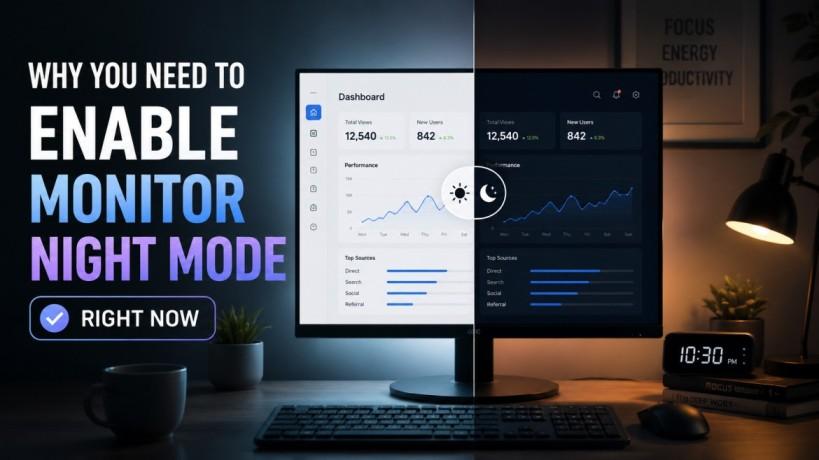
Spending long hours in front of a computer screen is a standard part of the modern workday. Whether you are managing an IT network, writing code, or analyzing data, your eyes take a heavy hit. By the end of the day, many professionals experience blurred vision, headaches, and physical fatigue. The primary culprit behind this discomfort is high-energy visible (HEV) blue light. Fortunately, integrating a monitor night mode into your daily routine offers a simple, effective solution to protect your vision.
Understanding Blue Light and Digital Eye Strain
Computer screens emit a sharp blue light that mimics natural daylight. While this exposure is helpful during morning hours to keep you alert, prolonged exposure in the evening disrupts your natural biological clock. It tricks your brain into thinking it is still daytime, suppressing the production of melatonin, the hormone responsible for sleep.
When you activate a monitor night mode, your display shifts toward warmer, amber tones. This reduction in harsh light prevents eye strain and protects your long-term macular health.
What is Digital Eye Strain?
Digital eye strain, also known as computer vision syndrome, describes a group of eye and vision-related problems that result from prolonged computer, tablet, and cell phone use. Symptoms often include:
-
Dry, irritated, or burning eyes
-
Frequent tension headaches
-
Blurred or double vision
-
Neck and shoulder pain from poor posture
Implementing a monitor night mode helps mitigate these issues by lowering the harsh contrast between your display and the ambient room lighting.
How to Set Up Monitor Night Mode on Your OS
You do not need expensive external software to safeguard your eyes. Modern operating systems have built-in color temperature adjustments designed specifically to lower blue light emission.
Activating Windows Night Light
For Windows users, the built-in feature is called Night Light. It allows you to manually toggle warmer colors or schedule them based on your local sunset.
-
Open your Windows Settings menu and select System.
-
Click on Display in the left-hand sidebar.
-
Toggle the Night Light switch to the "On" position.
-
Click Night Light Settings to adjust the strength of the amber tint or to set an automatic schedule.
Setting Up Mac Night Shift
Apple provides a similar built-in blue light filter called Night Shift for macOS users.
-
Open your System Settings from the Apple menu.
-
Select Displays from the menu options.
-
Click on the Night Shift tab or button.
-
Choose a schedule (such as Sunset to Sunrise) and use the slider to adjust the overall color temperature to your preference.
Hardware vs. Software Solutions for Eye Comfort
While adjusting your operating system settings is a great first step, you can combine a software-based monitor night mode with hardware solutions for maximum protection.
Dedicated Blue Light Filters
Many modern office monitors come equipped with built-in low blue light settings directly in their On-Screen Display (OSD) menus. Checking your display's physical buttons can reveal dedicated presets for reading, office work, or nighttime viewing.
Computer Glasses
If you frequently switch between multiple devices or work under harsh overhead fluorescent lighting, investing in anti-glare computer glasses can provide an extra layer of defense. These glasses filter out HEV light before it ever reaches your eyes, working perfectly alongside your software adjustments.
Boost Productivity and Enhance Sleep Quality
Optimizing your workspace environment is directly tied to your professional productivity. When your eyes are comfortable, your focus improves, and you can sustain concentration without experiencing midday burnout.
Using a monitor night mode during late-evening work sessions ensures that your screen time won't ruin your sleep cycle. Better sleep quality leads to sharper cognitive function, faster problem-solving skills, and higher energy levels the following morning. Taking care of your visual health is an investment in your overall business performance.
FAQs
Does monitor night mode actually reduce eye strain?
Yes. By shifting the screen color temperature from cool blue to warm amber, a monitor night mode reduces the harsh glare and high contrast that force your eye muscles to overwork, effectively lowering digital fatigue.
Will turning on screen filters affect color accuracy?
Yes, turning on a monitor night mode alters the color profile of your screen, giving it a yellowish tint. If your work involves professional photo editing, graphic design, or color-critical video production, you may need to temporarily disable the filter during active design tasks.
Should I keep night settings active all day?
While a monitor night mode is primarily designed for low-light environments, many professionals keep a mild blue light filter active during the day to combat intense office lighting and maintain consistent eye comfort.
Conclusion
Protecting your eyes from digital fatigue is a vital step in maintaining a healthy, productive workflow. Tools like monitor night mode make it incredibly easy to adapt your technology to your body's natural rhythms. Beyond software adjustments, ensuring your overall network hardware and workplace systems are optimized can drastically improve your daily operations.
If you want to ensure your business technology is fully optimized for performance, security, and employee wellness, feel free to Contact Us today to see how our tailored IT solutions can help.

 English
 Arabic
 French
 Spanish
 Portuguese
 Deutsch
 Turkish
 Dutch
Dutch
 Italiano
 Russian
 Romaian
 Greek
Greek