


Wondershare PDF Password Remover for Mac: Complete Step-by-Step Guide
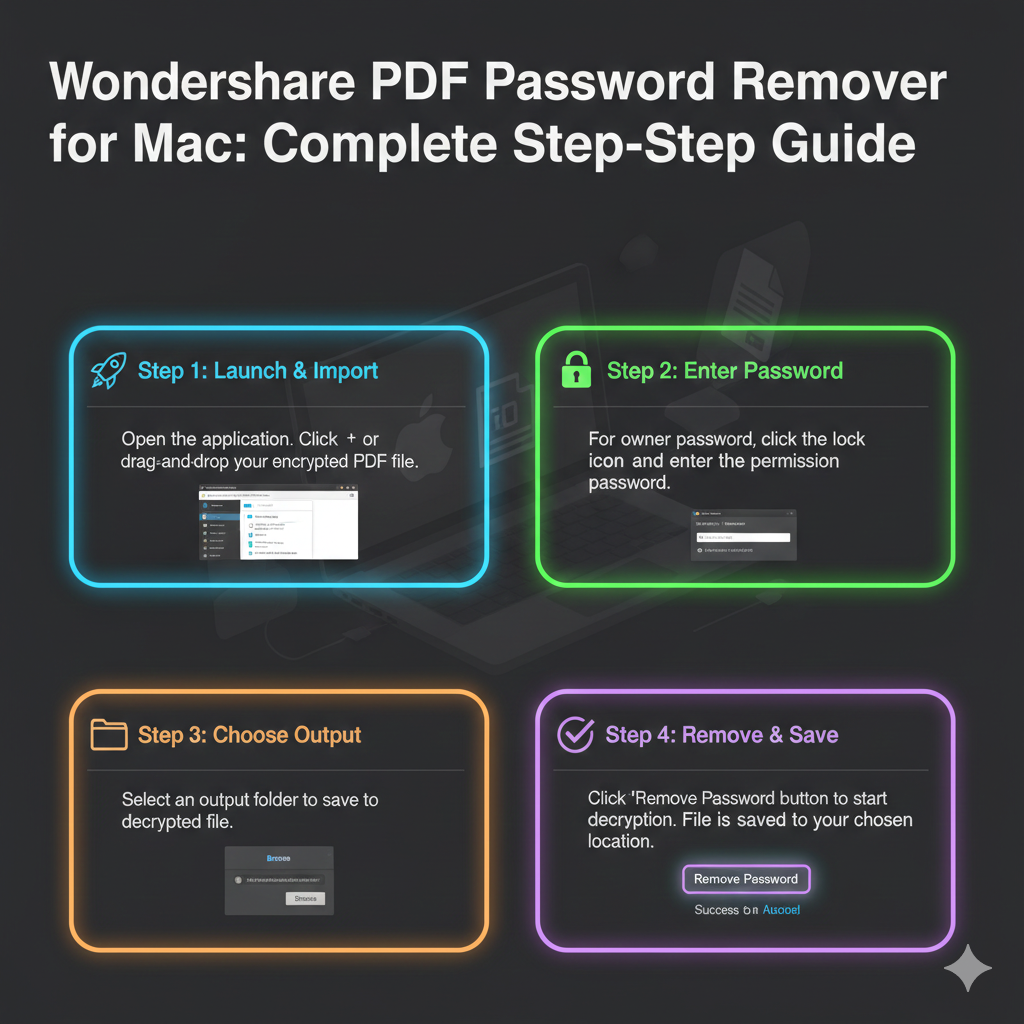
If you need a fast and reliable way to unlock protected PDF files on your Mac, Wondershare PDF Password Remover for Mac is one of the most user-friendly tools available. This guide walks you through everything — downloading and installing the software, registering the full version, removing restrictions from PDFs (editing, copying, printing), handling multiple files at once, and best practices to ensure smooth operation. Plus, watch out for potential deals and a wondershare coupon codes for extra savings.
Why Choose Wondershare PDF Password Remover for Mac?
Before diving into the steps, here’s why this tool is worth considering:
- Mac-Native Compatibility: Works seamlessly with macOS versions from 10.5 through the latest releases.
- Batch Processing: Remove restrictions from multiple PDFs simultaneously, saving time.
- Simple Interface: Import files, click “Start,” and get unlocked PDFs — no complex menus or settings.
- Flexible Licensing: Offers multiple license tiers, free updates, and a 30-day money-back guarantee.
- Permission Removal: Effectively removes editing, copying, and printing restrictions (owner passwords). Note: It does not bypass unknown open-passwords.
Bottom line: If you frequently work with locked PDFs and want a quick, batch-capable Mac solution, this tool is ideal.
Getting Started: Download and Installation
Follow these steps to set up Wondershare PDF Password Remover on your Mac:
Step 1: Download
- Go to the official Wondershare PDF Password Remover page.
- Click Free Download or Try Now to get the trial version.
- Wait for the
.dmgfile to finish downloading.
Step 2: Install
- Locate the
.dmgfile in your Downloads folder. - Double-click to mount it, then drag the app icon into Applications.
- Open the app from Applications. If macOS warns about an “unidentified developer,” go to System Settings → Security & Privacy to allow it.
Step 3: Register Full Version
- Trial versions may limit pages or add watermarks.
- Purchase a license from the official store, then enter your email and registration code to unlock the full version.
- Once installed and registered, you’re ready to unlock PDFs.
How to Remove PDF Restrictions on Mac
Here’s the step-by-step process for unlocking PDFs restricted from editing, copying, or printing:
Step 1: Open the App and Import PDFs
- Drag and drop your files into the main window, or use File → Open.
- You can import multiple files for batch unlocking.
Step 2: Check Lock Status
- PDFs with owner password restrictions (editing/printing/copying) will show normally.
- PDFs with an open password will display a lock icon or prompt for the password.
Step 3: Enter Password (If Needed)
- For PDFs with an open password, type it in when prompted.
- The tool cannot bypass unknown open-passwords, only remove restrictions once the file can be opened.
Step 4: Start Unlocking
- Click Start or Remove.
- Batch processing saves time for multiple files.
- Unlocked PDFs are automatically saved to your chosen output folder.
Step 5: Save and Verify
- Check one file to ensure editing, copying, and printing are now allowed.
- Keep a backup of the original if you want to retain the locked version.
Pro Tips and Best Practices
- Batch Mode: Use it for multiple PDFs to save time.
- Check Compatibility: Ensure your macOS version is supported.
- Backup Originals: Always keep a copy of locked files.
- Organize Outputs: Separate folders for unlocked files prevent mix-ups.
- Understand Limitations: Unknown open-passwords cannot be bypassed.
- Keep Software Updated: New macOS versions may require updates.
- Security: Run on a trusted, secure machine when handling sensitive PDFs.
Look for a wondershare discounts to save on the full license.
Common Use Cases
- Work/Office: Quickly remove editing or printing restrictions from company PDFs.
- Students: Extract text or print PDFs shared with restricted permissions.
- Personal: Unlock archived PDFs for easier editing or sharing.
- Bulk Processing: Handle large folders of PDFs in one batch.
- Graphic/Publishing: Edit content in other software after unlocking.
FAQs
Can it unlock PDFs with unknown open passwords?
No. Only PDFs you can already open can have restrictions removed.
Can I unlock multiple PDFs at once?
Yes, batch mode allows unlocking dozens or hundreds of files simultaneously.
Which macOS versions are supported?
Mac OS X 10.5 up to 10.15 officially, with potential support for newer versions.
What are trial limitations?
Watermarks, page restrictions, or limited batch size. Full license removes these.
Is it safe?
Yes, formatting and content remain intact. Always test with a sample file first.
Will the unlocked PDF still show as protected?
No — once unlocked, editing, copying, and printing should be fully available.
Can it handle strong encryption?
Yes, for permission restrictions. Unknown open-passwords or very strong encryption may not be bypassed.
Troubleshooting
- PDF won’t unlock: Check if it has an open password.
- Batch processing fails: Try fewer files or restart your Mac.
- Watermark present: You’re using the trial version; upgrade to full license.
- App won’t open: Allow permissions in System Settings → Security & Privacy.
- Keep software updated for macOS compatibility.
Conclusion
Wondershare PDF Password Remover for Mac simplifies unlocking PDFs restricted from editing, copying, or printing. With batch processing, a Mac-native interface, and easy registration, it’s a reliable choice for office, academic, or personal workflows. Following this guide, you can confidently download, install, unlock, and save your PDFs. Don’t forget to check for a wondershare Deals to get the full version at a discounted price. Unlock your PDFs and take full control of your documents today.

 English
 Arabic
 French
 Spanish
 Portuguese
 Deutsch
 Turkish
 Dutch
Dutch
 Italiano
 Russian
 Romaian
 Greek
Greek